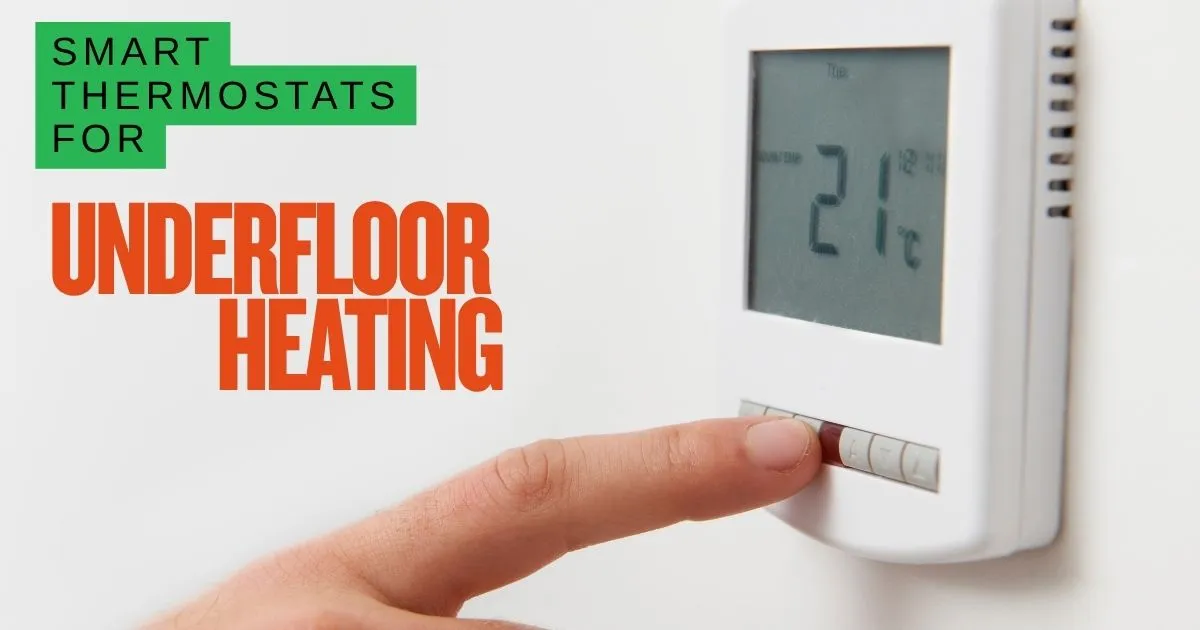
The Smart Life app can give you remote control of some underfloor heating thermostats, but it isn't a universal app for every heating system. The thermostat must support Tuya or Smart Life, and its electrical load, sensors and floor-limit controls must suit the system it's controlling.
An app doesn't make a thermostat suitable for electric mats or water-based underfloor heating. Get those choices right first in our smart thermostat guide for underfloor heating, then compare manual, programmable, smart and hydronic controls.
What the Smart Life app actually is
Smart Life is a multi-brand smart home app built on the Tuya platform. One account can show devices from different manufacturers that support the same Tuya-based service. It can also show compatible switches, sensors, lighting and other products alongside the heating controls.
That's useful if you already own Tuya-compatible equipment. One app can provide a single dashboard and automation between products. It also means the thermostat's features may be limited by the device maker. A feature displayed for one thermostat doesn't prove that every thermostat in the app supports the same schedules, sensors, energy data or voice services.
The app is sometimes labelled Tuya Smart or Smart Life, depending on the store listing and region. Check the QR code or product instructions before creating an account. The developer should be Tuya Smart or Tuya's associated entity, not an unrelated app with a similar name.
Remote control normally works through the thermostat and Tuya's cloud service. That makes internet access useful, but it also creates a network dependency. If your broadband is down, the thermostat's local schedule may continue to work, while changes made through the app may not get through.
Before you start pairing
Check the thermostat box or product page for one of these labels:
- Smart Life compatible
- Tuya Smart compatible
- Tuya app
- A QR code for the correct app
A thermostat saying only WiFi isn't enough. Some WiFi thermostats use a manufacturer's own app, another cloud platform or a local protocol.
For an underfloor heating installation, also confirm:
- The thermostat is suitable for the heating load. An electric mat zone needs a thermostat rated for the mat's current. A 16A thermostat isn't automatically suitable for every 16A circuit, especially where the manufacturer's instructions require headroom.
- A floor sensor is installed in the correct position between heating cables, with its resistance checked before the floor is covered.
- The floor limit matches the finished flooring manufacturer's requirements. The app setting doesn't replace correct sensor positioning or wiring.
- The installer has selected room, floor or combined sensor control correctly.
A full comparison of these choices is in our smart thermostats for underfloor heating.
Pairing the thermostat: step by step
The exact reset combination varies between models, so use the product's own instructions. Tuya's general setup process follows this pattern.
1. Prepare the WiFi
Most Tuya-compatible WiFi thermostats use the 2.4GHz band only. They won't pair to a 5GHz-only network. This is a hardware limit, even if the phone and rest of the home use faster 5GHz or 6GHz WiFi.
If your router gives both bands the same name, connection may be automatic. If it shows separate names, such as Home and Home_5G, temporarily connect your phone to the 2.4GHz Home network.
Don't disable router security or change advanced settings unless you know what you're doing. A 2.4GHz network using WPA2 or the router's current secure mode is the sensible starting point.
2. Install and register the app
Download Smart Life or Tuya Smart from the Apple App Store or Google Play, checking the developer details. Create an account and select your correct country or region. This choice can affect the cloud service and device options available to you.
3. Put the thermostat into pairing mode
Power it on, then use the button or button combination shown in its instructions. Many models use a long press on a WiFi or reset control until the WiFi symbol flashes. Don't assume a factory-reset button is always on the front. On some models it's on the back or inside a recessed connection area.
A factory reset removes WiFi settings and may also restore default schedules, sensor selection and floor limits. Record any special settings before resetting a working system.
4. Add the device in the app
Tap +, choose the automatic search if offered, or find the thermostat under the relevant small appliance or HVAC category. Tuya warns that manually choosing a similar-looking device can produce an incorrect dashboard, so use the model specified by the thermostat instructions.
The app will ask for the 2.4GHz WiFi name and password. The phone needs internet access during setup. Once connected, name the device after the room rather than leaving it as a generic model name. Kitchen Mat or Hallway Wet UFH will make shared access and automation much easier.
Setting a useful heating schedule
Most compatible thermostats offer a weekly schedule made up of time and temperature periods. Some support separate weekday and weekend programmes, while others treat every day differently. The available number of periods varies by model.
For underfloor heating, build the schedule around warm-up time rather than changing the target temperature every hour. A floor with screed, concrete or a thick finish may take much longer to warm than the air-temperature reading suggests. The exact time depends on the build-up, insulation, heat loss and target temperature, so test it rather than assuming a fixed figure.
A sensible pattern is:
- An early-morning comfort period for a bathroom
- A lower daytime setback for rooms heated mainly in the evening
- A longer comfort period before the evening return
- A lower overnight setting or the off setting recommended for the system
Don't switch a floor on and off for very short periods. Short cycles can give uneven comfort, especially with water-based systems that take time to respond. Save manual changes as sensible temperatures, not as repeatedly cancelling the programmed schedule.
Check the thermostat itself after creating the programme. In some models, the local screen and app may present the same schedule differently, which can cause unnecessary mistakes.
Set the floor limit correctly
The floor limit is one of the most important settings for underfloor heating. It uses the floor sensor to stop heating when the floor reaches the selected maximum, even if the room sensor is still asking for heat.
The correct limit isn't a universal number. Use the lower of:
- The maximum stated by the floor manufacturer
- The system or thermostat manufacturer's instructions
- The design specification for the installation
Some floor coverings need lower surface temperatures than others. Timber flooring, laminate and some resilient products can be damaged by excessive heat. The limit doesn't guarantee every part of the floor stays below the manufacturer's figure, so correct sensor placement, build-up and commissioning matter as well.
Some thermostats use combined control, where the room sensor controls comfort and the floor sensor acts as a maximum. Others can control from the floor sensor or room sensor alone. Don't select combined control merely because it appears in the app. The correct mode depends on the installed system and installer settings.
A limit is a safeguard, not a target. It shouldn't be used to try to heat the room more quickly by allowing an unsafe floor temperature.
What the app doesn't do
Smart Life provides the common platform, not every function of every product. Depending on the thermostat, it may offer remote temperature changes, schedules, hold mode, holiday mode and notifications. It may not provide:
- Reliable energy cost reports
- Floor-by-floor or circuit-by-circuit consumption data
- Open-window detection
- Weather compensation
- Learning control
- Diagnostic tools for an electric mat or water circuit
- The same feature set as the manufacturer's specialist app
Remote control also isn't a substitute for physical controls. Keep local operation available where possible and make sure everyone at home knows how to switch the zone off.
If several heating zones share one account, grant family access only to people who need it. Check that ordinary users can't accidentally remove the device or change a floor limit.
Privacy and security
A cloud-connected thermostat requires an account, a device identifier and network information to provide remote control. Tuya's Smart Life privacy notice explains that account, mobile device, usage, location and smart device information may be processed to deliver the service. Features such as location permissions are only useful if you choose to use them.
For a heating control, location access may be optional. Review permissions when the phone requests access to Bluetooth, camera or precise location. Camera access may be needed to scan a setup code. Don't grant it again during everyday use unless the app actually needs it.
Use a unique account password and enable the app's two-factor authentication if it's offered. Protect the broadband account as well, because anyone who changes the home router can disrupt every cloud-connected device. Create separate IoT access for visitors rather than giving them your main network.
Removing the app from your phone does not necessarily delete the account, its device record or cloud data. Use the in-app removal and account controls if you need to delete or transfer ownership. Removing a shared user may also need to be done from the account's family management area.
For a detailed account of another common UFH control route, see our Fastwarm underfloor heating review. Fastwarm's current WiFi thermostat listings describe smartphone, weekly scheduling and voice-assistant features, but confirm the app and compatibility for the exact model you buy.
Troubleshooting connection and control problems
Start with the least disruptive checks.
The app finds the thermostat
- Keep the phone on the same 2.4GHz network.
- Move the phone closer to the thermostat during setup.
- Confirm the thermostat is in pairing mode and the WiFi symbol is flashing as its instructions state.
- Check the WiFi password and ensure the SSID isn't hidden.
- Restart the router if other devices have also lost access.
- Reset the thermostat and pair it again.
Tuya's own guidance notes that router name or password changes can break the stored connection, requiring the device to be reset and added again.
The thermostat is offline in the app
- Check that the phone shows internet access.
- Open the router administration page and confirm the broadband connection is active.
- Power-cycle the thermostat using the manufacturer's method.
- If several smart devices are offline together, investigate the router or internet service first.
- If only this thermostat is offline, look for a weak WiFi signal, recent power supply change or lost pairing.
Don't repeatedly switch the heating load on and off while diagnosing the app. If the thermostat has a local schedule, verify the floor remains controlled even when remote access fails.
The schedule changes in the app but not on the thermostat
Refresh the app and check whether another household member has shared control and changed a setting. Some models also have a local hold or override. It will normally give way when the next scheduled period begins, but the exact behaviour varies.
If the app is showing a different number of periods or options from the printed manual, use the manual for that thermostat model. The platform and its menus can change, while a device maker may have added advanced settings locally.
When a proprietary app is better
A proprietary app is usually the better choice when the heating control is part of a properly designed heating system rather than a single remote thermostat. Look for one when you need:
- Whole-home zoning with several heating circuits
- Control of a manifold, zone valves or individual room emitters
- Weather compensation based on flow and return temperatures
- Open-window detection or a reliable learning function
- Local control that doesn't depend on a cloud service
- Detailed energy history and system diagnostics
- Direct support from the thermostat and heating system manufacturer
- A clear route to professional commissioning
This matters most for water-based underfloor heating. A mobile phone can add remote convenience, but it can't compensate for badly balanced pipework, undersized emitters, poor pump control or the wrong zone layout.
Stick with Smart Life when you have a compatible single-zone thermostat, already use Tuya devices, and mainly want remote control, weekly scheduling and floor-limit settings. Choose a dedicated platform when the app is part of a wider, professionally specified control system.
Source notes
Technical claims in this guide were checked against:
- Tuya Smart official help and FAQ, including device pairing, reset and 2.4GHz WiFi requirements
- Tuya Smart official pairing guidance
- Smart Life privacy notice
- Smart Life on the Apple App Store, for publisher and app privacy disclosures
- Fastwarm Smart WiFi 2.0 thermostat product page
- Fastwarm touchscreen thermostat documentation, for sensor modes, floor limit and scheduling
App screens, regions and supported functions can change. Always use the installation instructions supplied with the exact thermostat.
One useful email,
once a month.
New guides as they go live. Real cost data, not press releases. The occasional rumour from the industry that's actually worth knowing.
No sales pitches. No jargon. Unsubscribe in one click.